How to Animate SVG with AI in 2026
On this page
SVG animations are everywhere in modern web design: logos that draw themselves, icons that react on hover, loaders that spin smoothly at any resolution. The catch is that making them by hand is tedious, requiring SMIL attributes, CSS keyframes, or JavaScript, and endless trial and error. AI changes that. The new generation of tools takes a plain-English prompt, a sketch, or an existing SVG file and returns production-ready animation code in seconds. This guide explains how AI SVG animation works, walks through the steps, and compares the best AI tools of 2026.
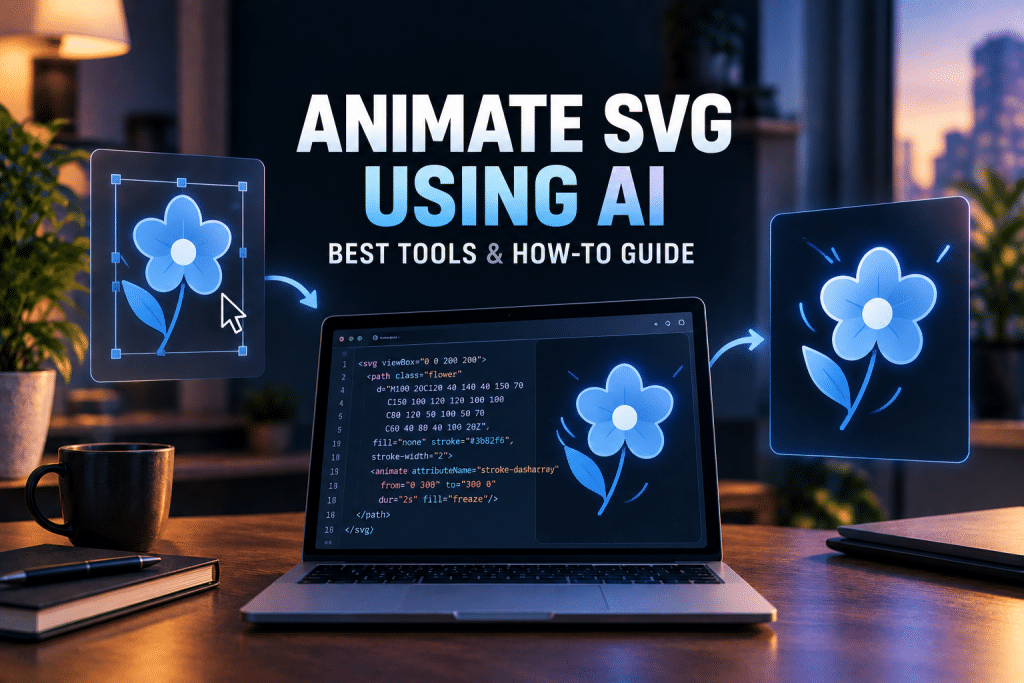
How AI SVG Animation Works
AI SVG animation tools bridge intent and code. You describe the motion you want (“logo draws itself stroke by stroke,” “icon bounces on hover”), and the AI generates the animation using one of three standard techniques, choosing the right one for the job:
-
CSS keyframes for most UI animations, transforms, fades, and color transitions.
-
SMIL (SVG’s native animation), good for path-based effects inside the SVG itself.
-
JavaScript for complex, interactive, or programmatically controlled motion.
The key advantage over generic video is that SVG stays resolution-independent, lightweight, interactive, and accessible. The output is editable code you paste into your project, not a locked file.
How to Animate an SVG with AI: Step by Step
The workflow is short and needs no animation software:
-
Provide your input. Paste an existing SVG, upload a PNG or JPG (the AI vectorizes it first), or describe the graphic in text.
-
Describe the motion. In plain English, say what should move and how: “draw the outline, then fill,” “pulse gently,” “rotate the loader continuously.”
-
Let the AI generate. It picks SMIL, CSS, or JavaScript and produces the animated SVG code, usually in under 30 seconds.
-
Preview and refine. Check the built-in preview, tweak the prompt, or on some tools select a single element to animate just that part.
-
Export and paste. Copy the clean code into your HTML, component, or design tool. No cleanup needed on the better tools.
The Best AI Tools to Animate SVG
1. Vector Wizard
Official website: vectorwizard.ai
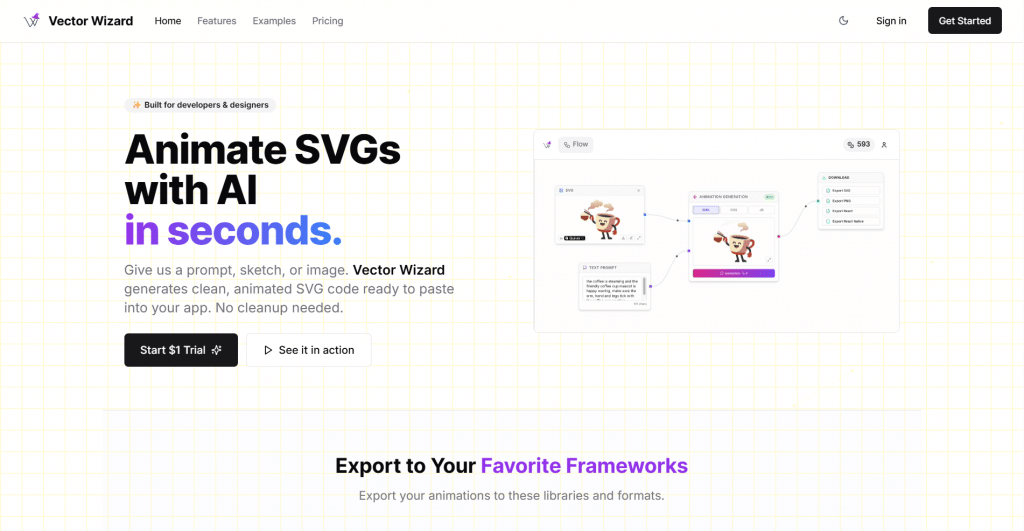
Platform: AI SVG animation generator, web-based.
Features: Vector Wizard is built for developers and designers who want clean, paste-ready output. It accepts a text prompt, a sketch, a PNG or JPG, or an existing SVG, and generates SMIL, CSS, or JavaScript animations, choosing the technique automatically. Its selling point is readable code: meaningful class names, logical structure, and no hidden dependencies, so you can edit the result rather than fight a minified blob.
Pricing:
|
Plan |
Price |
Key features |
|
Trial |
$1 |
Try the generator |
|
Paid |
Subscription |
Full generation and exports |
-
Accepts text, sketch, image, or existing SVG
-
Outputs clean, human-readable, editable code
-
Auto-selects SMIL, CSS, or JavaScript
-
Cheap: $1 trial to test
-
Full use requires a paid plan
-
Complex custom motion may still need hand-tweaking
2. SVG Weave
Official website: svgweave.com
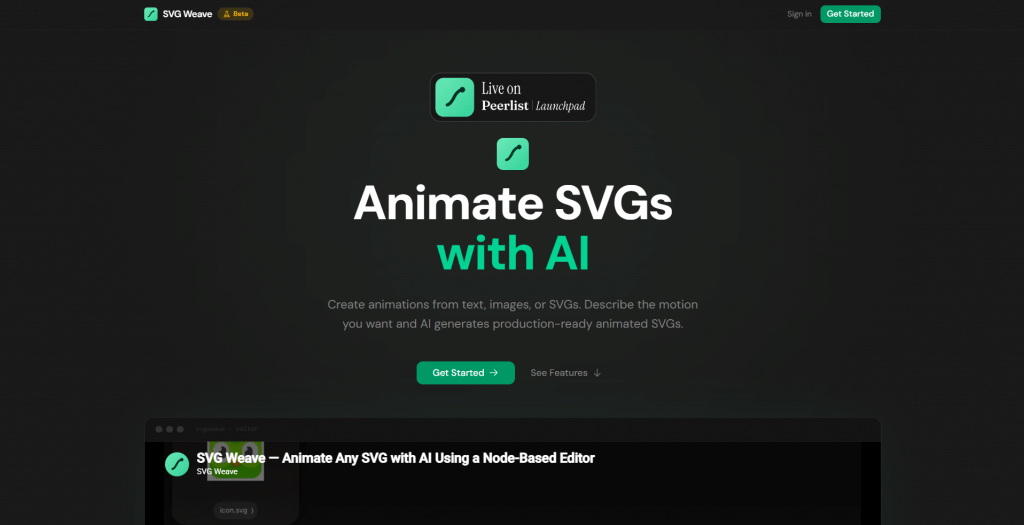
Platform: AI SVG animation generator with per-element control.
Features: SVG Weave starts from text, an image, or an SVG file and generates clean CSS @keyframes, no manual keyframing. Its standout feature is element-level control: you click an individual element inside the SVG and prompt the AI to animate just that part, then chain animations together. It handles transforms, opacity, color transitions, path morphing, and stroke-drawing effects.
Pricing:
|
Plan |
Price |
Key features |
|
Free |
$0 |
Try generation with limits |
|
Paid |
Subscription |
Higher limits and features |
-
Per-element selection and animation chaining
-
Clean CSS @keyframes output
-
Works from text, image, or SVG
-
Editable generated animations
-
Focused on CSS rather than SMIL or JS
-
Advanced use needs a paid plan
3. SVGAnimate.ai
Official website: svganimate.ai
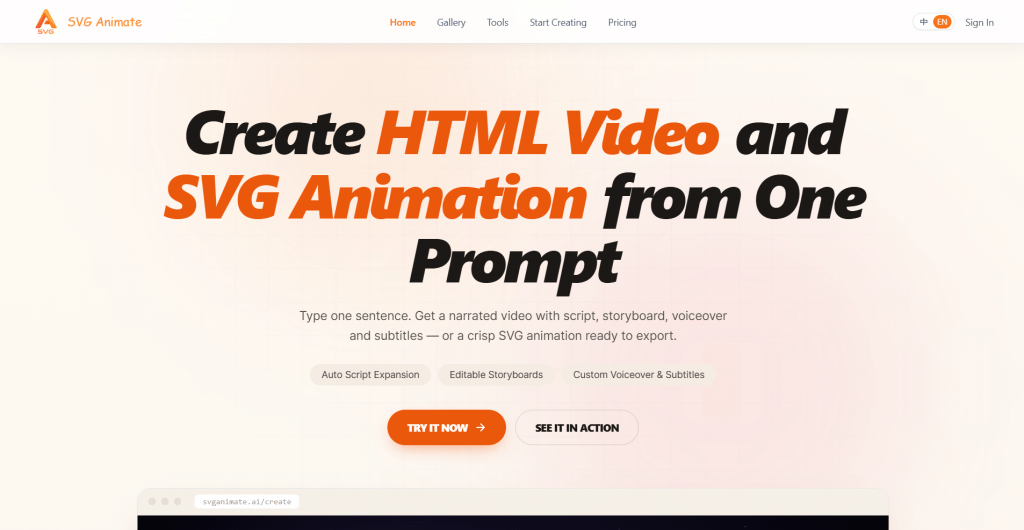
Platform: SVG animation plus HTML video generator.
Features: SVGAnimate.ai offers two modes: single-scene SVG animations (logo reveals, text, maps, loaders, STEM explainers, and more) and full HTML video. It targets creators, educators, and engineers who want animated content from one prompt with no coding or editing software, and it can export to SVG, GIF, or MP4 depending on the mode.
Pricing:
|
Plan |
Price |
Key features |
|
Free |
Trial |
Sample animations |
|
Paid |
Subscription |
Full generation and export formats |
-
Two modes: SVG animation and HTML video
-
Wide range of animation types and templates
-
Exports to SVG, GIF, or MP4
-
No coding or editing software needed
-
Broader scope means less SVG-specific depth
-
Full features behind a subscription
4. VectoSolve
Official website: vectosolve.com
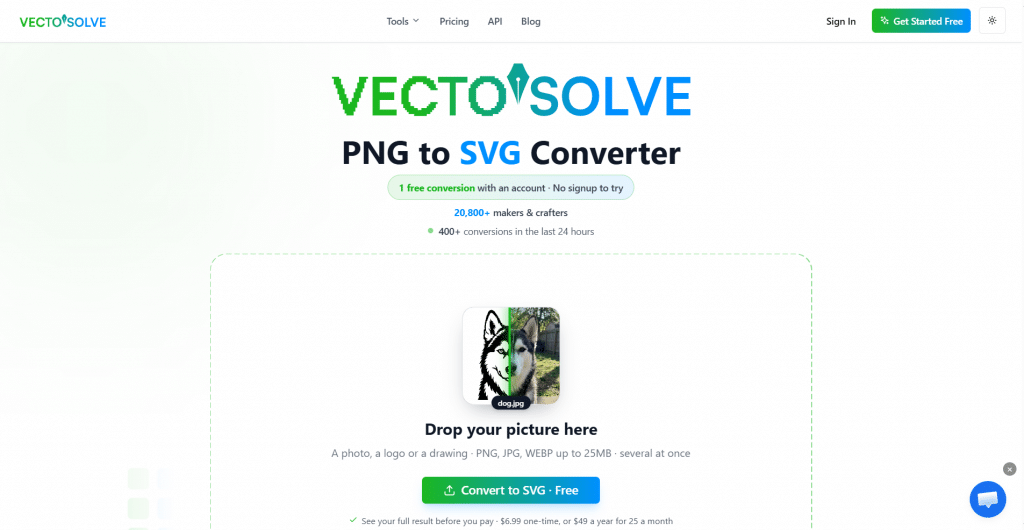
Platform: Fast AI-native SVG animation tool.
Features: VectoSolve is built for speed, generating a pure-CSS animated SVG from a prompt in around eight seconds, with a built-in preview that shows the result immediately. It is beginner-friendly with no learning curve and uses a credit-based model, making it a fit for anyone who wants one quick animation without committing to a subscription.
Pricing:
|
Plan |
Price |
Key features |
|
Credit-based |
~0.10 to 0.50 credits per animation |
Pay per animation, pure-CSS output |
-
Very fast, around eight seconds per animation
-
Beginner-friendly with no learning curve
-
Pure-CSS output, easy to drop into any site
-
Credit-based, no forced subscription
-
Credit model adds up for heavy use
-
Focused on CSS, less suited to complex JS motion
5. Adobe Animate (the traditional route)
Official website: adobe.com
Platform: Professional timeline animation software.
Features: Adobe Animate is the long-standing professional tool for frame-by-frame animation, offering deep manual control for those who want to decide every detail. It is powerful but slow and complex, and two honest caveats matter in 2026: it exports HTML5 Canvas rather than true animated SVG, and Adobe moved it to maintenance mode in February 2026, so no new features are coming.
Pricing:
|
Plan |
Price |
Key features |
|
Subscription |
$22.99/mo (annual) or $34.49 month-to-month |
Full timeline animation suite |
-
Maximum manual control over every frame
-
Industry-standard professional toolset
-
Deep feature set for complex work
-
Slow (45+ minutes) and steep learning curve
-
Exports HTML5 Canvas, not true animated SVG
-
Costs $22.99/month before you animate anything
Note that this feature has been in maintenance mode since February 2026.
Comparison Table
|
Tool |
Type |
Speed |
Output |
Best for |
|
Vector Wizard |
AI generator |
Seconds |
SMIL, CSS, JS |
Clean editable code |
|
SVG Weave |
AI generator |
Seconds |
CSS keyframes |
Per-element control |
|
SVGAnimate.ai |
AI generator |
Seconds |
SVG, GIF, MP4 |
SVG plus video |
|
VectoSolve |
AI-native |
~8 sec |
Pure CSS |
Fast, beginner-friendly |
|
Adobe Animate |
Manual timeline |
45+ min |
HTML5 Canvas |
Deep manual control |
How to Choose
-
For clean, editable code across techniques: Vector Wizard.
-
For animating specific elements of an SVG: SVG Weave.
-
For SVG plus video export: SVGAnimate.ai.
-
For the fastest single animation: VectoSolve.
-
For deep manual control (and you do not need true SVG output): Adobe Animate, though its maintenance-mode status is a real drawback.
Conclusion
Animating SVG with AI has turned a slow, code-heavy task into a one-prompt job. For most web designers and developers, an AI generator, Vector Wizard for clean code, SVG Weave for element-level control, VectoSolve for speed, or SVGAnimate.ai for video export, produces production-ready animation in seconds, no SMIL or keyframe wrangling required. The traditional route, Adobe Animate, still offers the deepest manual control, but it is slow, pricey, now in maintenance mode, and does not even output true animated SVG. Describe the motion you want, let the AI write the code, and refine from there. The blank timeline is no longer the starting point.
❓ Frequently Asked Questions
Answers to relevant questions about this AI tool