How to Professionally Say Anything with AI
On this page
Everyone has sat staring at an email, knowing exactly what they want to say and knowing they absolutely cannot say it that way. “You didn’t read my last message.” “That deadline is impossible.” “This is not my job.” The thought is valid; the wording would start a fire. This is where AI email rewriters shine: paste your blunt draft, and they return a professional version that keeps your meaning and drops the friction. This guide shows how to professionally say the hard things, with real before-and-after examples, then compares the best AI tools for the job.

How to Professionally Say the Hard Things
The trick is to keep the message and soften the delivery. Here are common blunt thoughts and their professional translations:
-
“You’re wrong.” becomes “Let me share a different perspective on this.”
-
“You didn’t do what I asked.” becomes “I wanted to circle back on the request from my earlier note.”
-
“That deadline is impossible.” becomes “To hit that date, we’d need to adjust scope or add resources. Can we discuss options?”
-
“This isn’t my job.” becomes “This falls outside my current remit, but I can point you to the right person.”
-
“Stop emailing me about this.” becomes “To keep things streamlined, let’s consolidate updates into our weekly check-in.”
-
“You’re late again.” becomes “I noticed this came in after the deadline. Is there a blocker I can help with?”
The pattern is consistent: lead with intent, replace blame with a path forward, and keep it brief. AI tools automate exactly this transformation.
How AI Email Rewriters Help
A professional email rephrase tool takes your draft and rewrites it for tone, clarity, and length, usually letting you pick a target tone (professional, friendly, direct, diplomatic). Used well, it does three things:
-
Defuses tension. It rewrites a defensive or sharp draft into one that opens dialogue instead of assigning blame.
-
Saves time. You write fast and rough, then let the tool polish, rather than agonizing over every word.
-
Builds consistency. Your emails read clearly and professionally even on a bad day.
The honest caveat: use AI to rephrase, not to decide strategy, and always read the result before sending, since an over-polished message can drift into vague corporate blandness.
The Best AI Tools for Professional Emails
Grammarly
Offcial Website: grammarly.com
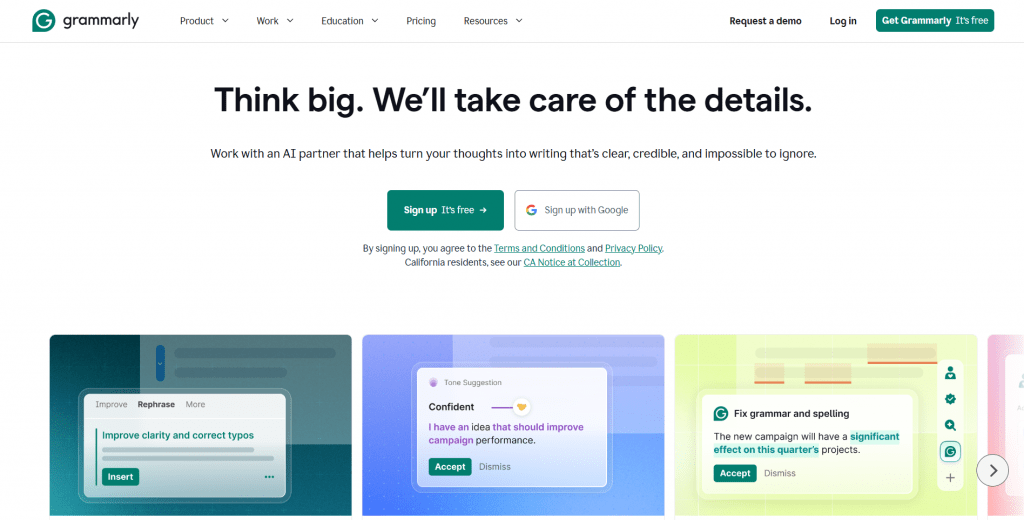
Best for: polishing tone and clarity in emails you have already written. Grammarly’s tone detection flags when a message reads as harsh, uncertain, or blunt, and suggests rewrites, working across Gmail, Outlook, and the web. Its free tier handles most everyday polishing, with Premium (around $12/month) adding deeper rewrites.
-
Excellent tone detection that catches harsh or uncertain phrasing
-
Works everywhere: Gmail, Outlook, and across the web
-
Strong free tier covers most everyday email polishing
-
Also fixes grammar and clarity in one pass
-
Polishes existing text rather than drafting from scratch
-
Deepest rewrite features need premium
ChatGPT or Claude
Official Website: chatgpt.com
Best for: flexible, from-scratch drafting and multiple tone variations. Paste your blunt draft, specify the tone and the relationship (“rewrite this for my manager, firm but respectful”), and get several options.
Official Website: claude.ai
Both have capable free tiers and are the most adaptable when you want full control over the result.
-
Most flexible option for any tone, length, or situation
-
Generates several variations to choose from
-
Capable free tiers on both tools
-
Great for drafting from scratch, not just rewriting
-
No native inbox integration, so you copy and paste
-
Needs a clear prompt to avoid generic output
PolitePost
Official Website: politepost.net
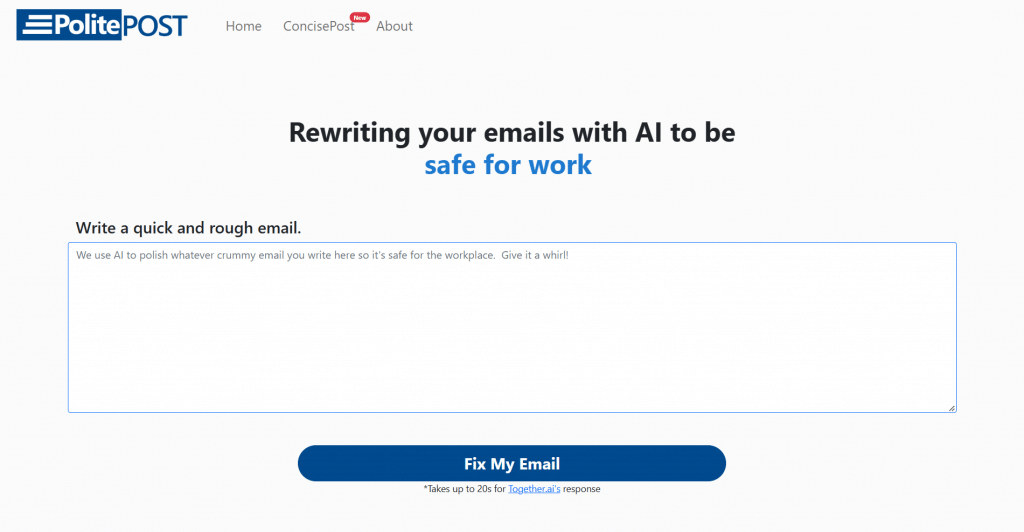
Best for: turning a genuinely blunt or emotional draft into a workplace-safe email. You write it rough, slang and all, and PolitePost cleans it into something professional in seconds. It is free, simple, and purpose-built for exactly the “I can’t send this as-is” moment.
- Purpose-built for blunt-to-professional rewrites
- Free and extremely simple to use
- Handles slang and emotional drafts gracefully
- No account needed to start
- Single-purpose, with no tone presets or drafting
- Web-only, so no inbox integration
Phrasly AI Formalizer
Official Website: Phrasely AI Formalizer
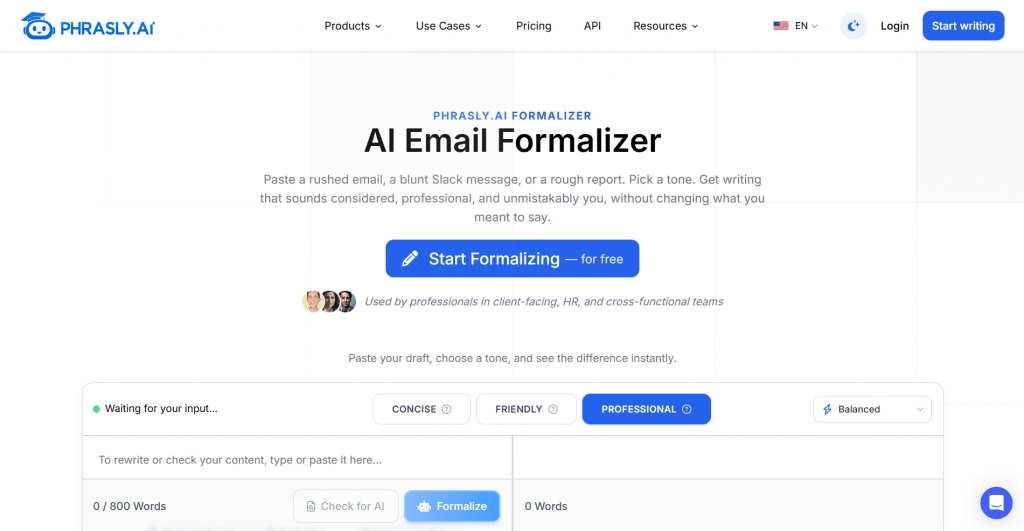
Best for: quick, free tone rewrites with presets. Paste a message, pick Professional, Friendly, or Concise, and get five rewritten versions to choose from, with tone-strength control. Ideal for client emails, manager updates, and even cleaning up a Slack message.
-
Free, with five rewritten versions per request
-
Tone presets plus tone-strength control
-
Works for emails and Slack messages alike
-
Fast, no-signup workflow
-
Web-based, so no native inbox integration
-
Preset tones offer less nuance than a custom prompt
Microsoft Copilot or Professionally
Official Website: copilot.microsoft.com
Best for: rewriting inside Outlook. Microsoft Copilot drafts and rewrites professional emails directly in Outlook (around $20/month via Microsoft 365), while Professionally adds quick tone presets (Professional, Diplomatic, Confident, Empathetic) inside Outlook, Chrome, and iOS. Both suit people who live in their inbox and hate switching tabs.
-
Work directly inside Outlook, no tab-switching
-
Copilot drafts and rewrites across Microsoft 365
-
Professionally offers quick tone presets in Outlook, Chrome, and iOS
-
Ideal for high-volume inbox users
-
Copilot requires a paid Microsoft 365 plan
-
Most valuable for Outlook-centric workflows
Comparison Table
|
Tool |
Best for |
Free option |
Where it works |
|
Grammarly |
Tone polishing |
Yes |
Gmail, Outlook, web |
|
ChatGPT / Claude |
Flexible drafting |
Yes |
Web, paste-in |
|
PolitePost |
Blunt to polite |
Yes |
Web |
|
Phrasly Formalizer |
Quick tone presets |
Yes |
Web |
|
Copilot / Professionally |
In-Outlook rewriting |
Varies |
Outlook, Chrome |
How to Choose
-
To polish emails you write yourself: Grammarly.
-
To rewrite a too-blunt or emotional draft: PolitePost or Phrasly.
-
To draft from scratch with full control: ChatGPT or Claude.
-
To work entirely inside Outlook: Microsoft Copilot or Professionally.
Match the tool to whether you want to write, rewrite, or just soften, and start with a free option before paying.
Conclusion
Knowing how to professionally say the hard things is one of the most useful skills at work, and AI makes it far easier. The method is simple, keep your meaning, replace blame with a path forward, and lead with intent, and the right tool automates it: Grammarly for polishing, PolitePost and Phrasly for softening blunt drafts, ChatGPT or Claude for full control, and Copilot or Professionally for Outlook users. Write honestly and quickly first, then let AI translate it into something you can actually send. Just always read the result before hitting send, because the goal is a message that is professional and still unmistakably yours.
❓ Frequently Asked Questions
Answers to relevant questions about this AI tool