AI Tools for Time Code Transcription: Accurate Timestamps
On this page
A plain transcript tells you what was said but not when, which starts to matter the moment you need one sentence out of ninety minutes of audio. Time code transcription adds the missing clock: every line, sometimes every word, arrives stamped with the exact moment it was spoken, so text and recording stay in lockstep. This guide compares four tools that handle it well, with prices checked in September 2026.
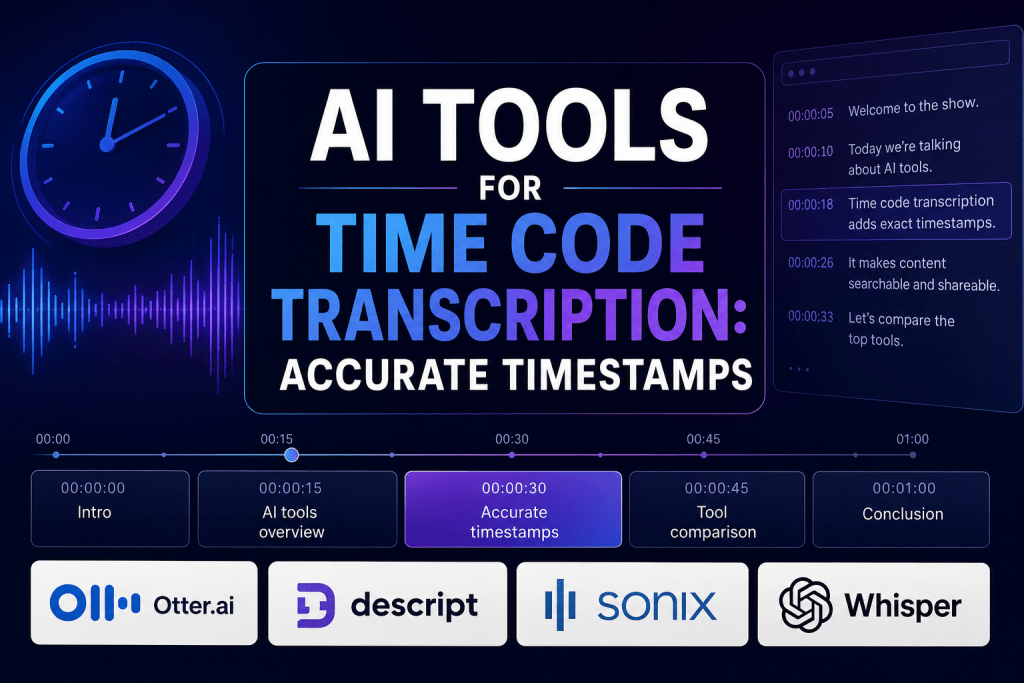
What a Time Code Actually Looks Like
When a tool converts audio to text with timestamps, the export usually arrives as one of two subtitle formats, SRT and VTT files. Open one in a text editor and you’ll find blocks like this:
12 00:14:32,120 –> 00:14:35,400 The budget was approved on Tuesday.
That block tells a video player to show the sentence from 14 minutes 32 seconds to 14 minutes 35 seconds. SRT uses a comma before the milliseconds, VTT uses a period, and nearly every platform, YouTube included, accepts both. Two levels of precision exist: segment timestamps mark whole phrases, while word-level timestamps pin each individual word, which is what karaoke-style captions and precise audio syncing are built on. Timestamps for transcripts also power automatic subtitles, since a caption is just a transcript line with a start and end time attached.
The audience is wider than subtitlers. Podcasters paste timestamped chapters into show notes, journalists cite interviews by time code instead of “around the middle,” and video editors sync b-roll to specific sentences.
Top AI Tools for Time Code Transcription
These four AI transcription tools split the territory neatly: one for meetings, one for video editing, one for precision multilingual work, one for zero budget.
1. Otter.ai
Official Website: otter.ai
Otter is built for meetings. It joins your Zoom, Meet, or Teams call, produces a live transcript with speaker labels and time codes while people are still talking, and turns the result into summaries and action items. The catch sits in the fine print: the free plan caps conversations at 30 minutes and allows three file imports for the life of the account.
Platform: Web browser, iOS and Android apps, Chrome extension.
Pricing:
|
Plan |
Price |
Key Features |
|
Basic |
$0 |
300 min/month, 30 min per conversation, 3 file imports ever |
|
Pro |
$8.33/mo billed annually ($16.99 monthly) |
1,200 min/month, 90 min per conversation, 10 imports/month |
|
Business |
$19.99/mo billed annually ($30 monthly) |
Unlimited meetings up to 4 hours each, 3 concurrent, bulk export |
- Live transcription with speakers labeled while the meeting is still running.
- The 300 free minutes renew every month, no card required.
- Three lifetime file imports make the free plan useless for archives.
- Caption (SRT) export starts on the Pro plan; the free tier exports only text and audio.
- Six transcription languages, and the interface is English-only.
2. Descript
Official Website: descript.com
Descript treats the transcript as a transcript editor in the fullest sense: delete a sentence from the text and it disappears from the video. Transcription covers 25 languages with automatic detection of 8+ speakers, and captions are styled, animated, and burned in without leaving the app, which makes it the pick for video subtitling.
Platform: Windows and macOS desktop app, plus a browser version.
Pricing:
|
Plan |
Price |
Key Features |
|
Free |
$0 |
1 hour of media/month, 720p export |
|
Hobbyist |
$16/mo billed annually ($24 monthly) |
10 media hours/month, 1080p |
|
Creator |
$24/mo billed annually ($35 monthly) |
30 media hours/month, 4K export |
|
Business |
$50/mo billed annually ($65 monthly) |
40 media hours/month, dubbing in 30+ languages |
- Editing video by editing text collapses two jobs into one.
- Caption translation into 61 languages, with dubbing on the business plan.
- One free hour a month runs out on the first real project.
- English-only interface, and the AI extras burn through plan credits.
3. Sonix
Official Website: sonix.ai
Sonix is the precision option. Timestamps and speaker labels come with every plan; caption export covers SRT and VTT; transcription runs in 54+ languages with translation into 55+; and billing is prorated to the second. A custom dictionary teaches it your names and jargon.
Platform: Web browser; site localized into 11 languages, Russian included.
Pricing:
|
Plan |
Price |
Key Features |
|
Trial |
$0 |
30 free minutes, no card |
|
Pay As You Go |
$10/hour |
Transcription and translation, 5 GB storage |
|
Core |
$25/mo |
5 hours/month included, extra hours at $10 |
|
Advanced |
$50/mo |
20 hours/month, team features |
- Multilingual transcription in 54+ languages, with in-browser subtitle editing.
- Pay-as-you-go suits one-off projects; no subscription required.
- One of the few sites in the category with a Russian interface.
- Translation and subtitle burn-in are billed as extra hours.
- Costs climb quickly past the monthly allowances.
4. Whisper
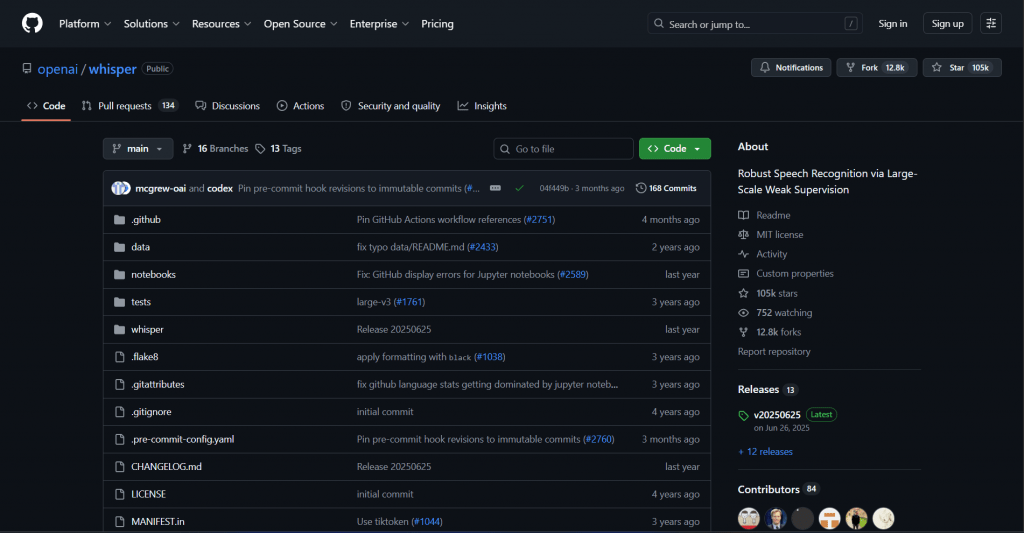
Official Website: github.com/openai/whisper
Whisper is OpenAI’s open-source model and the free power tool of the category. Run it on your own computer and it transcribes about 99 languages, writes SRT, VTT, TXT, and JSON, and offers word-level timestamps through a single option flag. The price is your patience with a command line.
Platform: Windows, macOS, and Linux, via command line; MIT license.
Pricing:
|
Plan |
Price |
Key Features |
|
Open source |
Free, forever |
Unlimited files, all formats, fully offline |
- No caps, no watermarks, no account, and audio never leaves your machine.
- Works anywhere in the world, including regions where paid services block cards.
- No interface and no speaker labels without third-party add-ons.
- Long files want a modern GPU, or you’ll wait.
Comparison Table
|
Tool |
Best for |
Free option |
Languages |
Russian UI |
|
Otter.ai |
Meetings, live notes |
300 min/month |
6 |
No |
|
Descript |
Video editing, captions |
1 hour/month |
25 |
No |
|
Sonix |
Multilingual precision |
30-min trial |
54+ |
Yes |
|
Whisper |
Bulk files, zero budget |
Everything |
~99 |
Command line |
Picking the Right One for Your Audio
The right tool follows the shape of the job:
- Weekly meetings and interviews: Otter, live and hands-off.
- Videos that need styled captions: Descript, where transcript and edit are the same file.
- Foreign-language or client work: Sonix, with SRT and VTT files on every plan.
- A hundred files and no budget: Whisper, plus one evening of setup.
Whichever you pick, budget a proofreading pass. Accuracy drops with accents, crosstalk, and bad microphones, and the machine stamps a wrong word just as confidently as a right one. The time codes will be exact. Whether the words under them are true is still your department.
❓ Frequently Asked Questions
Answers to relevant questions about this AI tool