
GPTExcel AI Tool: Smart Spreadsheet Assistant
On this page
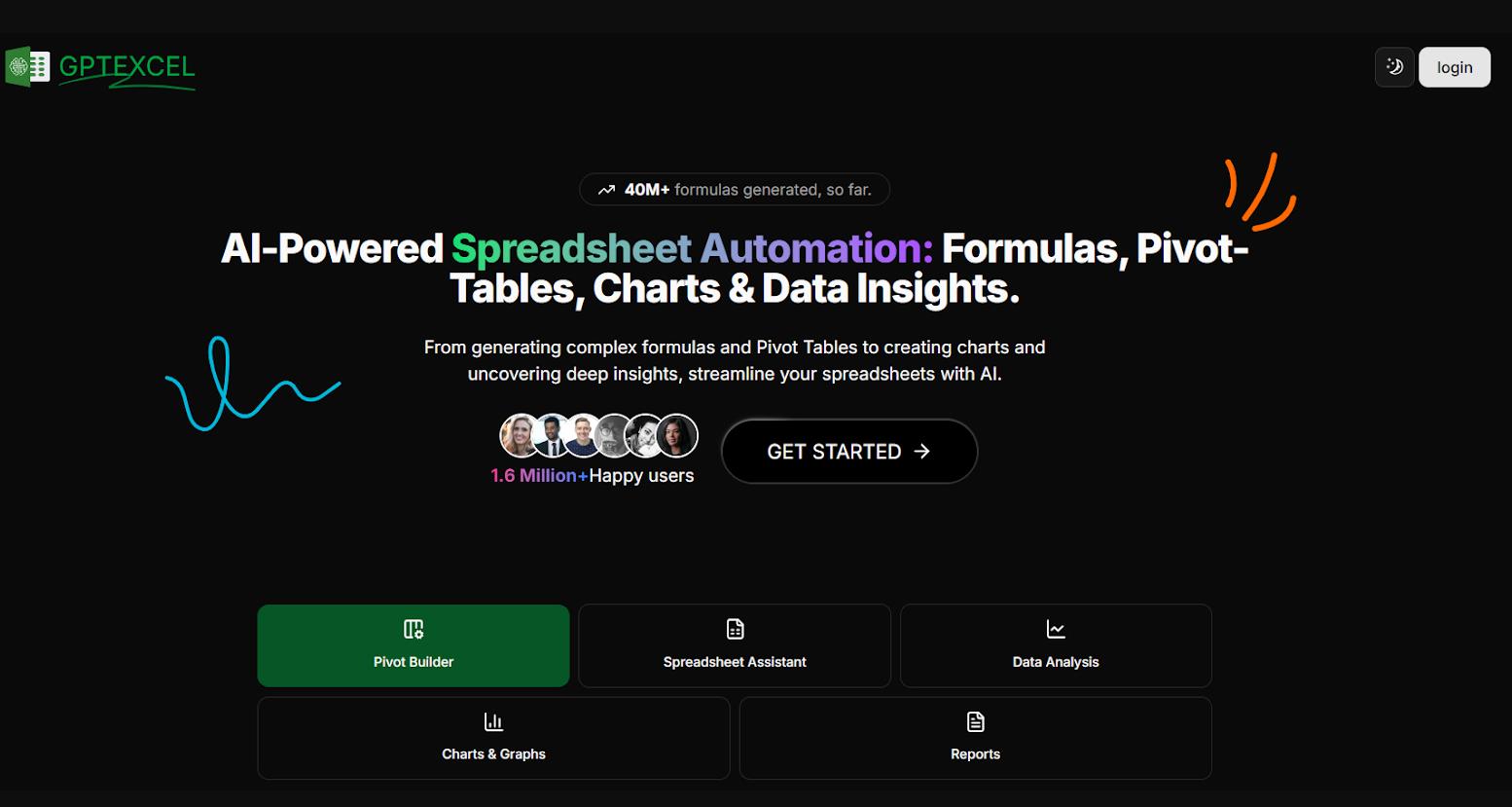
Most of us who work with spreadsheets have spent way too many hours hunting down the right formula or trying to remember how VLOOKUP works. Somehow it always takes longer than expected! Well, GPTExcel is one of the tools trying to fix that.
It’s not just a formula generator—it’s more like having someone sitting next to you who speaks spreadsheet. You describe what you need in plain language, and it spits out the formula, script, or analysis. Does it actually work? Let’s find out.
What it is and what it’s used for
GPTExcel is a web-based service that uses large language models (like GPT) to act as an “AI copilot” for working with spreadsheets. The core idea is simple and elegant: you describe a task in plain language, and the AI generates the technical solution for you.
Since its launch, the service—positioned as a “Smart Spreadsheet Assistant”—has generated over 30 million formulas and attracted more than 300,000 users worldwide. Today, its capabilities go far beyond simple formula generation. It’s a complete suite of tools that lets you:
- Turn photos of tables into editable files (OCR + AI)
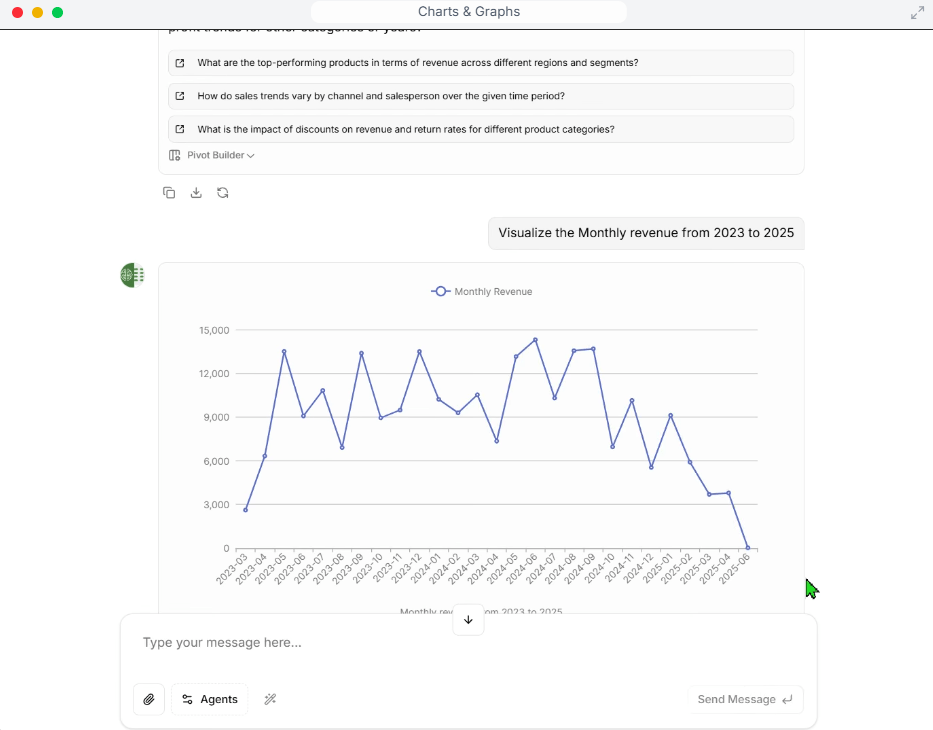
- “Chat” with your data, asking questions in plain language and getting answers in the form of text, charts, or reports
- Automatically create pivot tables, charts, and analytical summaries
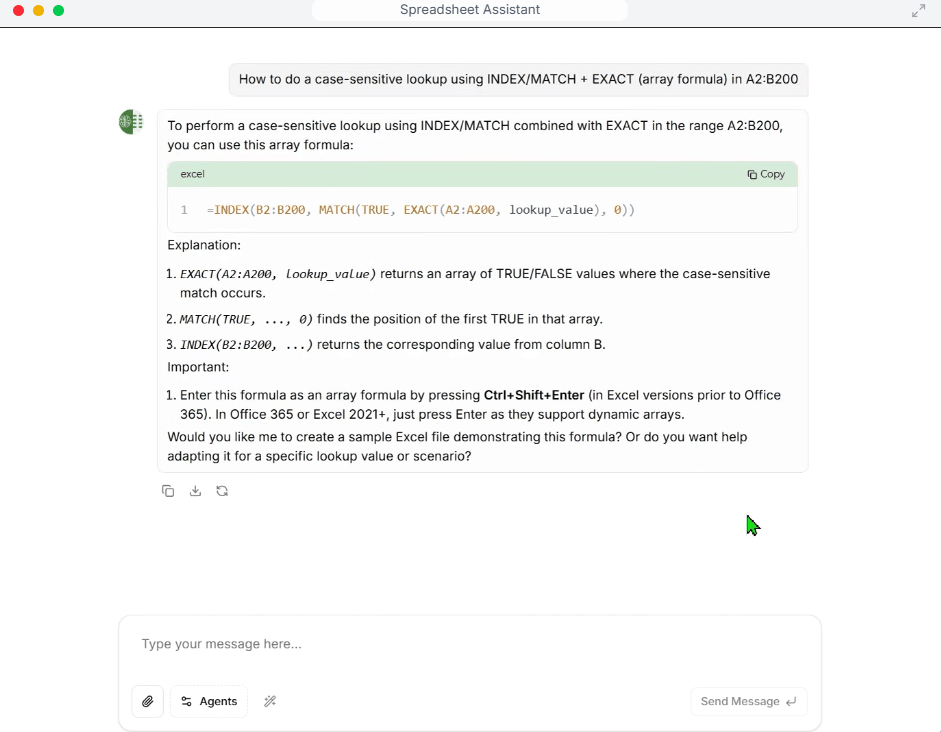
How it works
It’s all built on a question-and-answer approach, familiar to anyone who has used ChatGPT. The interface is intuitive and requires no installation—everything runs in your browser.
- Sign up: You go to the site and create an account. No credit card is required to start, and there’s a free plan available.
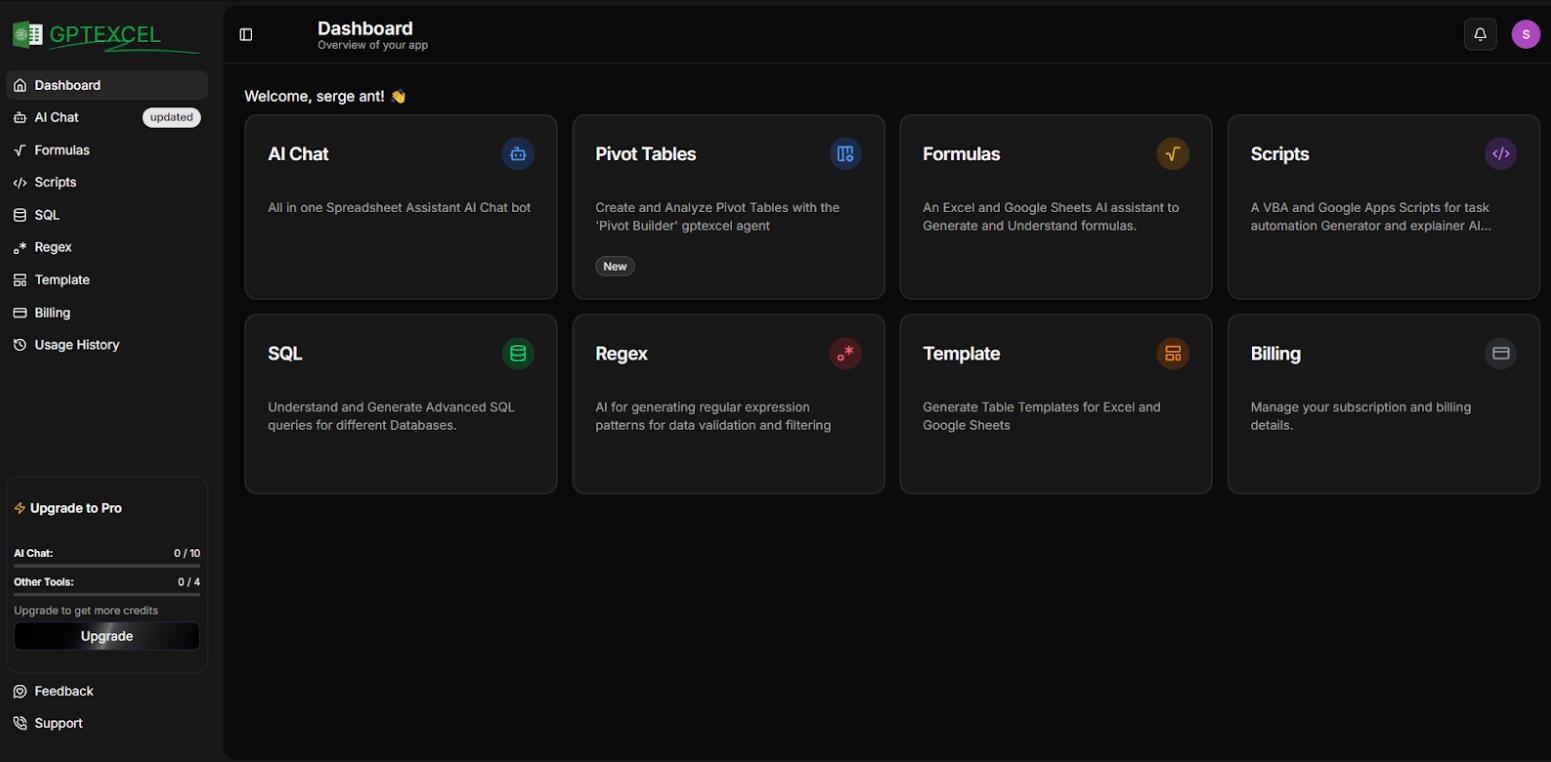
- Choose a tool: From the dashboard, you can select the module you need: formula generator, script generator (VBA, Apps Script), SQL query generator, or simply upload a file to chat with it.
- Describe your task: Write your request in plain language. For example: “Find the total sales for manager Smith for the last quarter” or “Create a script that highlights cells with negative values in red.”
- Get and use the result: The AI provides the ready-made formula or code along with a brief explanation. You just copy it into your spreadsheet.
What sets the service apart is its versatility. Beyond generating code, you can upload a photo of a table, and the AI will recognize it and offer it in Excel format. In “Chat with your file” mode, you can simply ask, “Which products account for 80% of revenue?” — and the system will provide not just the answer but also a visualization.
This is one of the key ways GPTExcel stands out from more narrowly focused competitors.
Platforms and things to keep in mind
The service supports all major spreadsheet applications: Microsoft Excel, Google Sheets, Airtable, and LibreOffice Calc.
Key considerations:
- Formats and limits: The free plan is limited to 4 requests per day, which is fine for getting a feel for the service. Paid plans (Pro starts at $6.99/month with annual billing) offer up to 1,000+ requests per day and the ability to upload files up to 100 MB.
- Quality of results: Like any AI, GPTExcel’s output depends on the quality of the input. The more precisely you describe column names and context, the more accurate the result you’ll get.
- How it works: This is a web application, not a built-in add-in. That means you still have to copy the results manually or upload a file to the site.
At the same time, independent benchmarks (such as those from AIMultiple) show the service’s accuracy is around 65%. To get good results, you need to be very specific with your requests, including column names and cell ranges. For complex or ambiguous tasks, the output may require manual tweaking.
It’s also worth noting that working through a web interface with copy-paste steps is less convenient than using built-in plugins that work directly inside Excel or Google Sheets.
Use cases of GPTExcel
GPTExcel is a powerful and affordable AI assistant that can genuinely become a go-to tool for a wide range of users. It handles most basic and intermediate needs related to data processing, from writing formulas to visual analysis. Plus, GPTExcel supports over 50 languages, making it a good fit for international teams.
Personal stuff:
- Budget tracking: “Create a formula that tracks whether my spending in the ‘Dining out’ category exceeds a set limit of $120.”
- Task planning: “Generate a Google Apps Script that automatically turns a row red if the deadline has passed and the status is not ‘Done.’”
Business stuff:
- Sales reporting: “Analyze this CSV file and create a bar chart showing revenue by month. Highlight the top 3 products.”
- Data processing: “Write an SQL query that joins the ‘Customers’ and ‘Orders’ tables to identify customers who haven’t made a purchase in the last 6 months.”
Who it’s for
The tool is aimed at a broad audience, but it’s especially useful for:
- Analysts, finance professionals, and accountants: for quickly building complex formulas (VLOOKUP, INDEX-MATCH, SUMIFS) and automating calculations.
- Marketers and sales managers: for creating dashboards, quickly analyzing campaigns, and generating summary reports.
- Small business owners and freelancers: for saving time on administrative tasks that don’t require hiring a dedicated specialist.
- Students and non-technical professionals: for getting up to speed with data work without having to learn complex formula syntax or programming languages.
User feedback and reviews
Public opinion about the service is generally positive. On specialized forums (Reddit, X/Twitter) and in blogs (HubSpot), it’s often called “revolutionary” and a “game changer” for spreadsheet work. Users note that the tool writes formulas instantly—tasks that previously took hours.
Critical feedback mostly centers on the free tier’s limitations and the need to manually check results for complex tasks.
- Saves time by automating routine tasks
- Broad functionality beyond just formulas
- Multilingual support with over 50 languages
- Low barrier to entry thanks to an intuitive interface
- Strict limits on the free plan: 4 requests per day is too few for meaningful testing
- Moderate accuracy that depends heavily on how you phrase your request
- No native integration like add-ins for Google Sheets or Excel
Verdict
GPTExcel is an excellent choice if you’re looking for an affordable, feature-rich tool to speed up your work with spreadsheets. If you need maximum accuracy for complex enterprise tasks or prefer a built-in solution, you might want to consider pricier competitors with native integration (such as Microsoft Copilot or Ajelix).
❓ Frequently Asked Questions
Answers to relevant questions about this AI tool
Sources
-
GPTExcel — gptexcel.uk
-
GPTExcel Pricing — gptexcel.app
-
GPTExcel Help Center — gptexcel.app
-
GPTExcel on X — x.com
-
GPTExcel Review - AppCritica — appcritica.com