

AI Tools For Excel: Formulas And Automation
On this page

How AI Understands and Processes Spreadsheet Data
AI for spreadsheets doesn’t just manipulate text—it truly understands your goal: sorting data, performing complex calculations, or building a report. When you give it a task and your data, the AI carefully examines everything. It analyzes numbers and text to spot hidden patterns. If your instructions are brief, it can even generate helpful examples on its own. Next, it builds the table structure: deciding on clear column headers and logical row organization. For complex projects, it creates multiple sheets with proper links so everything stays consistent. The real magic happens with calculations. AI doesn’t just plug in numbers. Like a seasoned analyst, it chooses the right functions, combines them into sophisticated formulas, and places them exactly where they belong so every calculation is accurate. The final spreadsheet isn’t just correct—it’s easy to read. The system suggests charts, uses conditional formatting to highlight key trends and issues, then reviews everything: simplifying formulas and removing clutter so the result is clean and professional.What AI Can Do—Feature by Feature
Smart Formulas
- Describe the task in everyday words (“add up expenses for March,” “find the highest salary”) and get a ready-to-use formula—SUMIF, MAX, or advanced combinations.
- Creates nested formulas for challenging problems that even experienced users sometimes struggle with.
- Explains complex formulas step-by-step in simple language.
- Helps locate and fix errors like #VALUE!, #DIV/0!, etc.).
Automating Routine Tasks
- Tell it what you want to repeat (e.g., copy Friday data to an archive with a new name) and the AI generates the required VBA or Google Apps Script code.
- Builds reusable templates for recurring reports—complete with structure, formulas, and formatting.
- Automatically renames sheets and sets up proper links between them.
Analysis & Forecasting
- Discovers trends and correlations that aren’t obvious at first glance, e.g., “sales increase after email campaigns.”
- Generates forecasts based on historical data—sales, website traffic, inventory levels, etc.
- Creates pivot-style summaries by region, manager, or any category—faster and simpler than manual pivot tables.
Data Cleaning & Transformation
- Standardizes inconsistent entries (e.g., “Acme Inc.”, “Acme Incorporated”, “Acme, Inc.” → one clean format).
- Uniforms date, phone number, and currency formats.
- Splits full names into First/Last columns.
- Fills blank cells intelligently based on surrounding data.
- Detects and removes duplicates—even when entries are slightly different.
- Extracts specific information from text cells, such as product codes or amounts.
Visualization & Formatting
- Analyzes the data and recommends the best chart type—column, bar, line, pie, etc.
- Automatically applies color rules: red for below target, green for above target.
- Adjusts column widths, row heights, and applies professional header styles so the entire sheet looks sharp.
Practical Tools: Quick Overview
Microsoft 365 Copilot
 Works directly inside the Office apps you already use—no extra installations or window switching required. In Excel it writes formulas and analyzes data from natural-language prompts.
In Word it helps draft and edit documents; in PowerPoint it builds presentations; in Teams it summarizes meetings. You get real-time suggestions so routine work happens automatically and you stay focused on what matters.
Bottom line: it genuinely saves hours every week.
Microsoft 365 Copilot
Works directly inside the Office apps you already use—no extra installations or window switching required. In Excel it writes formulas and analyzes data from natural-language prompts.
In Word it helps draft and edit documents; in PowerPoint it builds presentations; in Teams it summarizes meetings. You get real-time suggestions so routine work happens automatically and you stay focused on what matters.
Bottom line: it genuinely saves hours every week.
Microsoft 365 Copilot
Power Query
Pulls data from databases, other Excel files, CSV files, or web pages, then cleans and reshapes it—all automatically. You set up the transformation steps once, and Power Query repeats them perfectly every time new data arrives. Perfect for large or recurring datasets where manual processing is slow and error-prone. Power Query OverviewGitHub Copilot
 Takes the pain out of writing code from scratch. It suggests complete lines or blocks, explains what the code does, and helps fix bugs. Great when you want to go beyond basic formulas and automate repetitive reporting or connect Excel to other systems.
GitHub Copilot
Takes the pain out of writing code from scratch. It suggests complete lines or blocks, explains what the code does, and helps fix bugs. Great when you want to go beyond basic formulas and automate repetitive reporting or connect Excel to other systems.
GitHub Copilot
GPTExcel
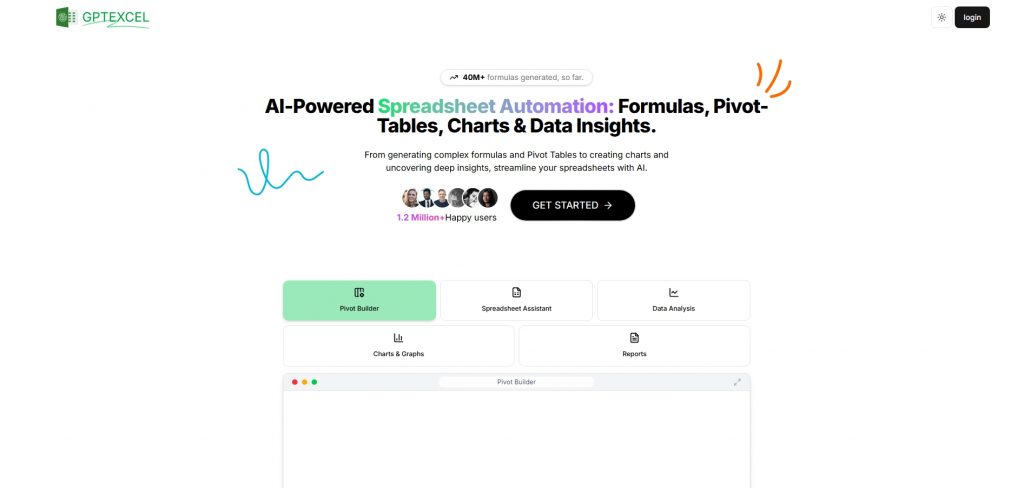 Type a plain-English request and instantly get the correct Excel or Google Sheets formula—no need to memorize syntax. Example: “sum sales for January” → ready-to-paste formula. Saves time and eliminates frustrating formula errors.
GPTExcel
Type a plain-English request and instantly get the correct Excel or Google Sheets formula—no need to memorize syntax. Example: “sum sales for January” → ready-to-paste formula. Saves time and eliminates frustrating formula errors.
GPTExcel
Ajelix
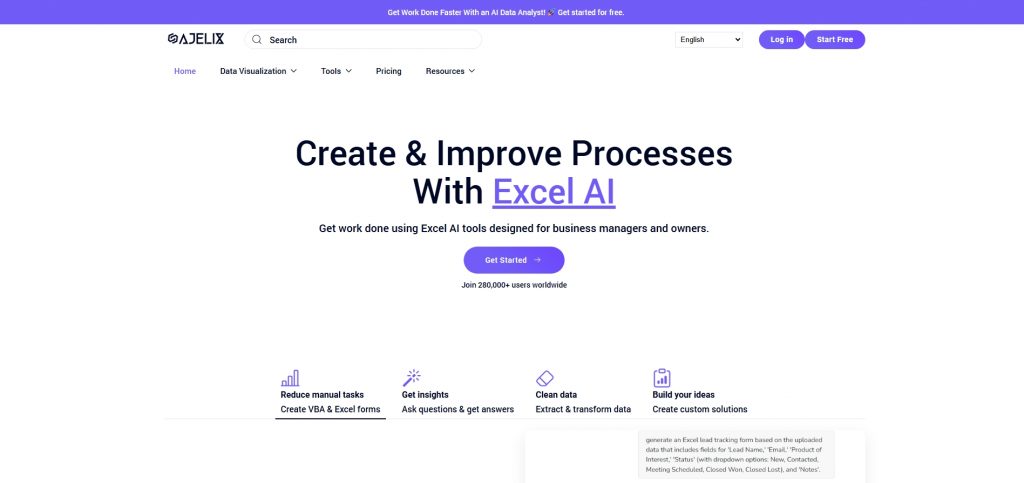 Platform with over 17 AI tools: formula generator, VBA writer, report builder, interactive dashboards, and more. Perfect for non-programmers who need powerful results fast.
Ajelix
Platform with over 17 AI tools: formula generator, VBA writer, report builder, interactive dashboards, and more. Perfect for non-programmers who need powerful results fast.
Ajelix



Wow, this sounds incredibly useful! I’ve always struggled with complex formulas in Excel, so this could really save me a lot of time.