
Beautiful AI, a neural network that allows you to automatically create presentations, slides, templates, and much more.
Beautiful.ai – The AI That Builds Stunning Presentations for You
On this page
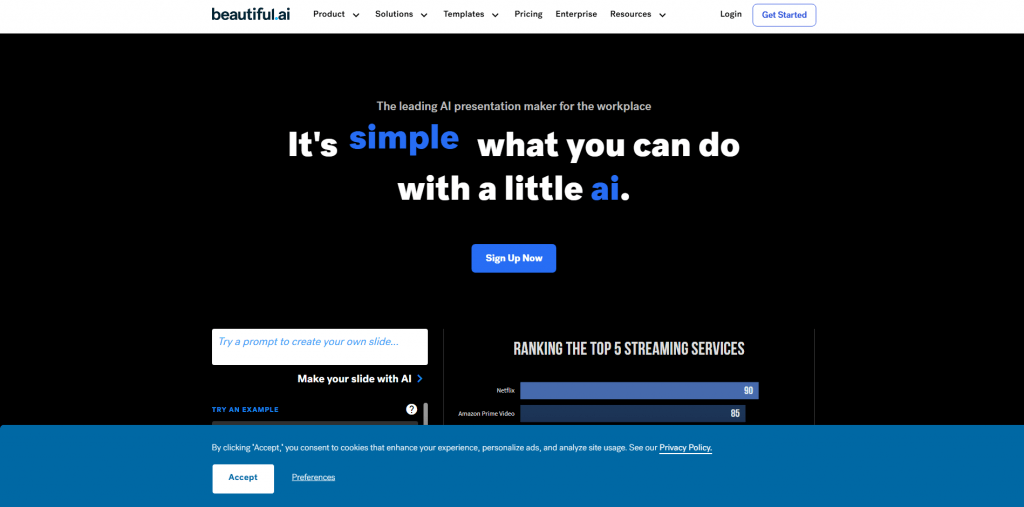
Why Beautiful.ai Stands Out: Key Features & Pricing
Want a professional deck ready in minutes? Here’s what Beautiful.ai can do:- Slides on demand – Type a simple prompt in the chat (just like ChatGPT) and the AI writes the content and designs the slide in a clean, contemporary style.
- Smart auto-layout – Add text, images, or data in a PowerPoint-like editor and the platform instantly aligns everything, picks fonts, and matches colors.
- Rich data visualization library – Hundreds of ready-made charts, timelines, website mockups, and screenshot embeds.
- One-click animations – Add entrance effects, transitions, and motion to individual elements in seconds.
- Brand consistency (Business plan) – Upload your fonts, logos, and color palette so every slide automatically follows your brand guidelines.
How Much Does It Cost?
You get a 14-day free trial (a credit card is required). After that:- $45/month – individual monthly plan
- $480/year – team/business plan with unlimited users and advanced brand controls
How to Use Beautiful.ai: Step-by-Step Guide
Creating a deck in Beautiful.ai is easier than you think. Here’s the complete seven-step process — perfect even for first-time users. Sign Up Go to the site and create an account with your email or Google. The whole process takes less than a minute — no complicated forms. Pick a Starting Point Decide the goal of your presentation first. Selling a product? Showing data? Comparing options? Once you know the direction, click “Add Slide” — the AI instantly suggests relevant layouts. Can’t find the perfect one? Just type keywords into the search bar (“financial report,” “product roadmap,” etc.) or browse categories like Data, People, or Timelines. The most popular startup pitch, Gantt chart, and feature-list templates are front and center so you don’t waste time hunting. Customize Your Slides Add text, photos, animations, audio clips, shapes, icons — everything you need is built in. The free built-in library has thousands of high-quality stock photos and icons. Want minimalist visuals or bold imagery? Pick a theme (Technology, Nature, etc.) or search terms like “startup” or “growth.” No more digging through stock sites. Pro tip: Even for niche requests (e.g., “space tools”), short keywords work best — the system will suggest matching assets from its collection. Photos automatically crop and resize to fit the layout. Just drag a corner to adjust — the AI re-crops intelligently. Change Colors & Themes Instantly Switch the entire look of a slide with one click. Choose a new color palette or theme and every element updates automatically — no manual tweaking required. Update an Existing Deck Need to refresh a slide? Beautiful.ai offers dozens of alternative layouts and color schemes. Pick one and the AI rearranges titles, adds footers, and groups elements beautifully. Change the master theme once and every slide in the deck updates fonts, colors, logos, and slide numbering in seconds. Smart infographics let you swap between timelines, lists, pie charts, donut charts, thermometer charts, waterfall charts — all fully editable on the fly. AI Suggestions Panel A panel on the right offers real-time tips: change a font, add a chart, or rewrite a headline. Ignore anything you don’t like — you’re always in control. Team Collaboration Invite teammates with a link. Everyone can comment, edit, or add slides in real time — no version conflicts. Export & Present When you’re done, export as PDF, PowerPoint, or video. Download for offline use or present directly from the browser with full-screen presenter mode and speaker notes. Share & Embed Share instantly via link, email invitation, or embed code for your website. Pro users can password-protect decks, restrict access to specific people, or allow view-only mode. Don’t forget speaker notes — add hidden cues to any slide so you never lose your place during the live presentation.❓ Frequently Asked Questions
Answers to relevant questions about this AI tool
Can I use Beautiful.ai for free?
Yes — you get a 14-day free trial. A credit card is required, and the subscription will auto-renew unless canceled.
How do I start a presentation from scratch?
After signing up, choose a blank deck, type a prompt in the AI chat (e.g., “title slide for a startup pitch”), and let the AI generate the first design. Or add content manually — everything auto-aligns.
How do I add animations?
Select any element → open the Animation menu on the right → choose entrance, exit, or emphasis effects.
Sources
-
Beautiful.ai — beautiful.ai
-
Beautiful.ai Pricing and Plans — beautiful.ai
-
Team Plan Pricing - Beautiful.ai — beautiful.ai
-
Beautiful.ai Review - TechRadar — techradar.com
-
Beautiful.ai Reviews (2026) - Product Hunt — producthunt.com